Mobile App
The Litara mobile app is in very early alpha. Expect rough edges, missing features, and breaking changes between releases. It is not yet suitable for everyday use.
Litara has a companion Android app built with Expo / React Native. It connects to your existing self-hosted Litara server and lets you browse your library and view book details from your phone.
Installing
The mobile app is distributed as an APK (Android Package) built via EAS. There is no Play Store listing yet.
- Download the latest APK from the GitHub releases page.
- On your Android device, enable Install from unknown sources for your browser or file manager.
- Open the downloaded
.apkfile and follow the on-screen prompts to install.
iOS is not yet available.
Connecting to your server
When you first open the app you are taken to the Connect to server screen. Enter the address of your Litara instance — include the port if it is not on 80 or 443.
Examples:
192.168.1.100:3000(local network)litara.example.com(behind a reverse proxy)
The app verifies the address is reachable before saving it. Tap Connect to proceed to sign in.
To change the server address later, tap your current server URL on the sign-in screen.
Signing in
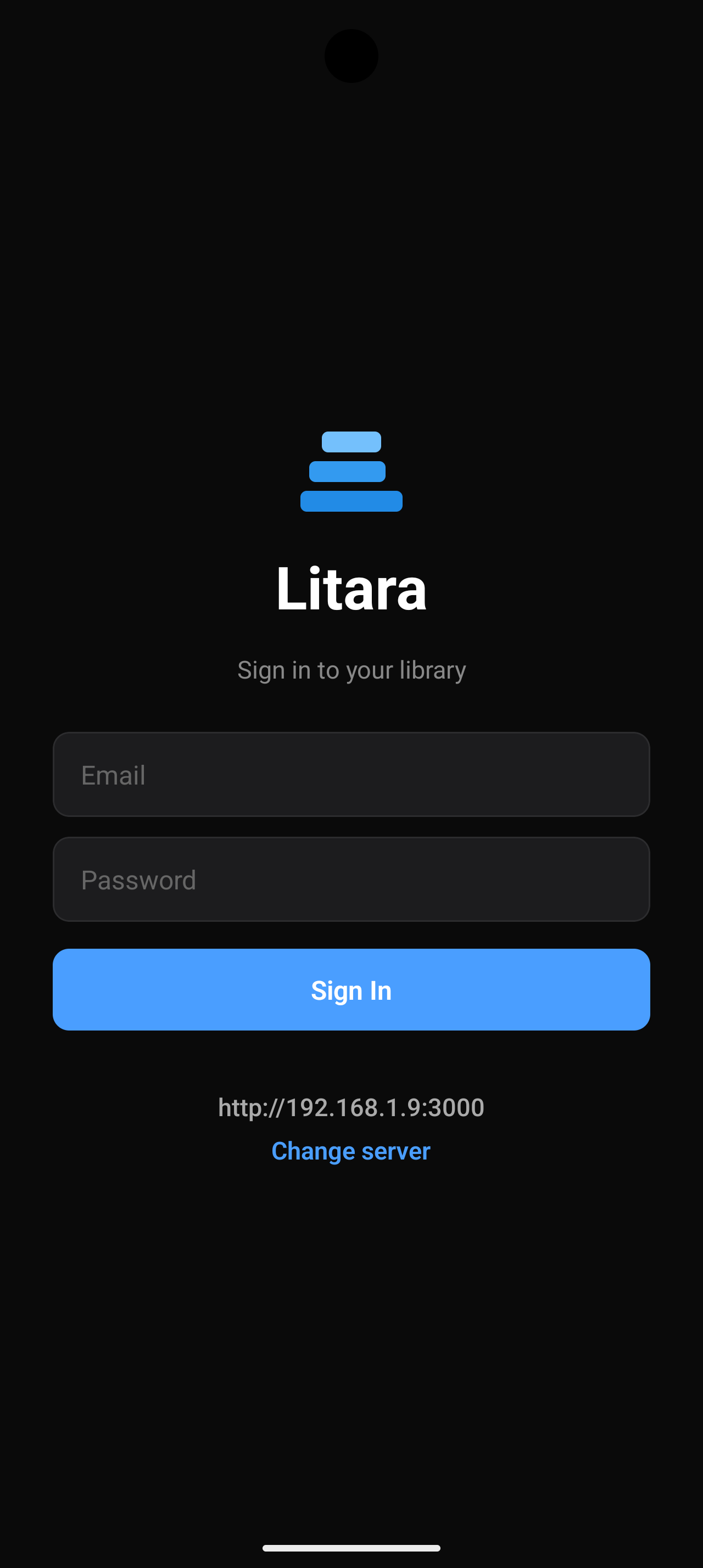
Enter the email and password for your Litara account and tap Sign In. The same credentials you use on the web app work here.
Browsing your library
Dashboard
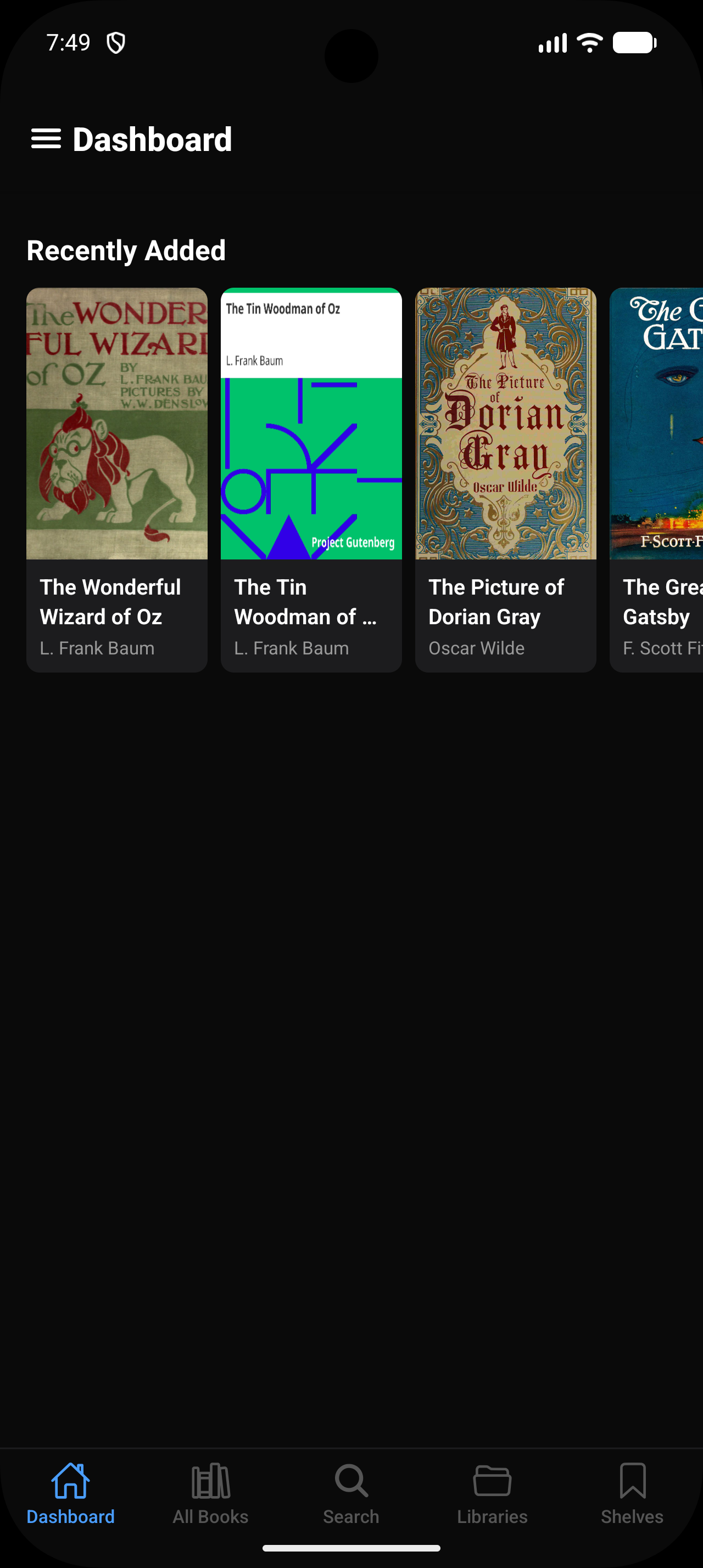
The Dashboard tab shows two horizontal scroll lists:
- Continue Reading — books you have started but not finished (only shown when at least one is in progress).
- Recently Added — the 20 most recently imported books.
Tap a cover to open the book detail page.
All Books
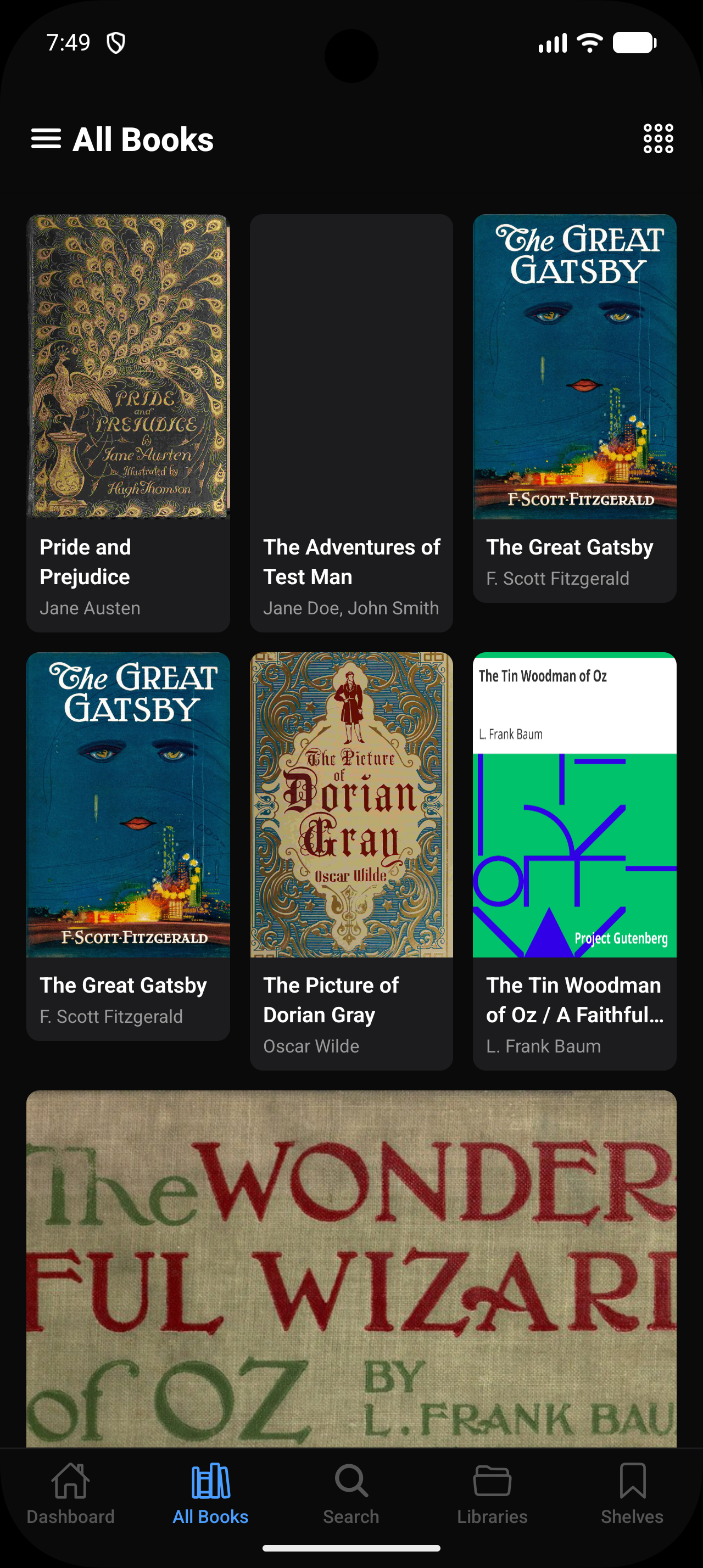
The All Books tab shows your entire library in a two-column grid, sorted alphabetically. Scroll to the bottom to load more books.
- Tap a book to open the book detail page.
- Long-press a book for a quick-action sheet.
- Tap the grid icon in the top-right to cycle between 2, 3, and 4-column layouts.
Book details
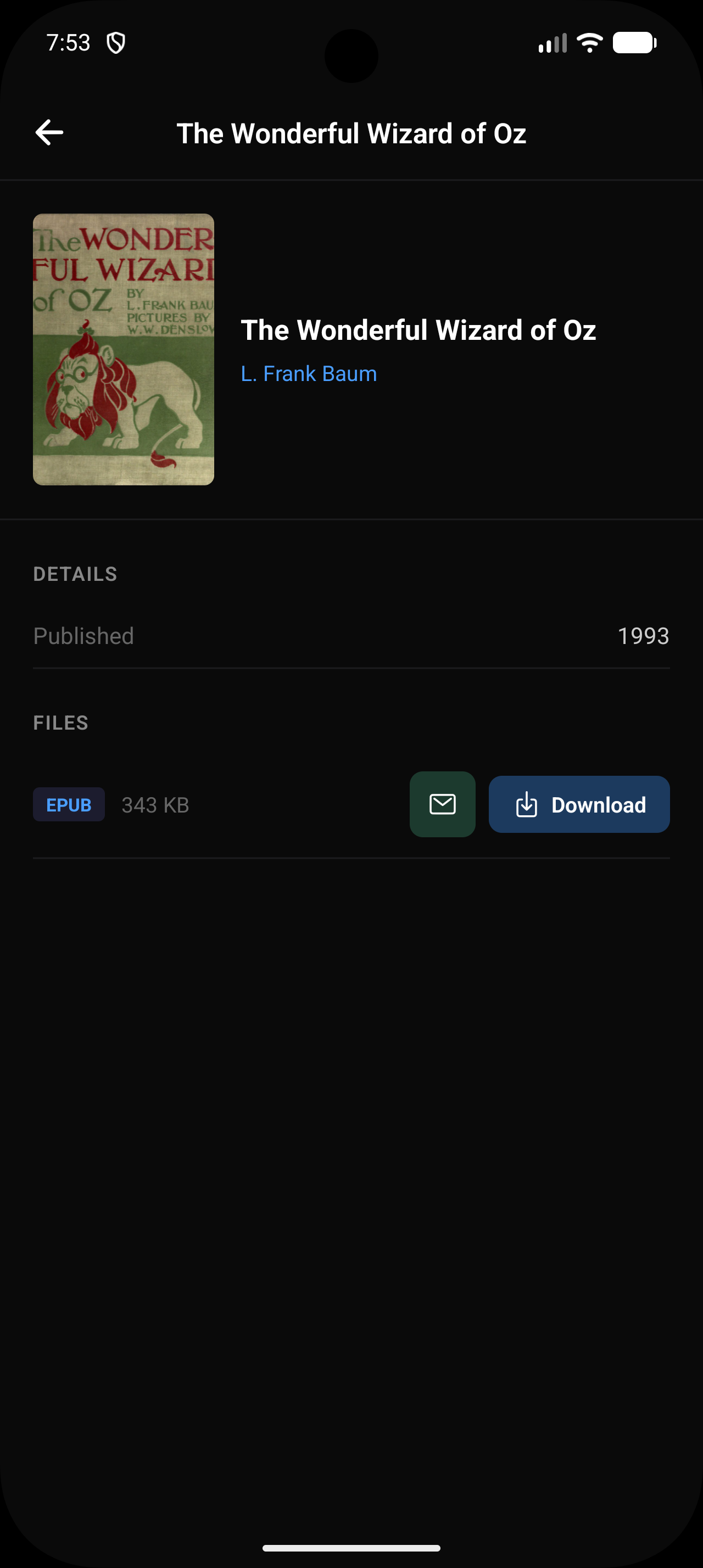
The book detail page shows the cover, title, authors, series, description, and metadata (pages, language, publisher, ISBN, Goodreads rating). Genres and tags appear as chips below the description.
The Files section lists every file format available for the book. Tap Download next to a format to save it to your device's local storage.
Navigation
The bottom tab bar provides quick access to your main views:
| Tab | Description |
|---|---|
| Dashboard | Recently added and in-progress books |
| All Books | Full library grid |
| Search | Search across your entire library |
| Libraries | Browse by library folder |
| Shelves | Books organised into named shelves |
Tap the hamburger menu (≡) in the top-left on any screen to open the side drawer.
Side drawer
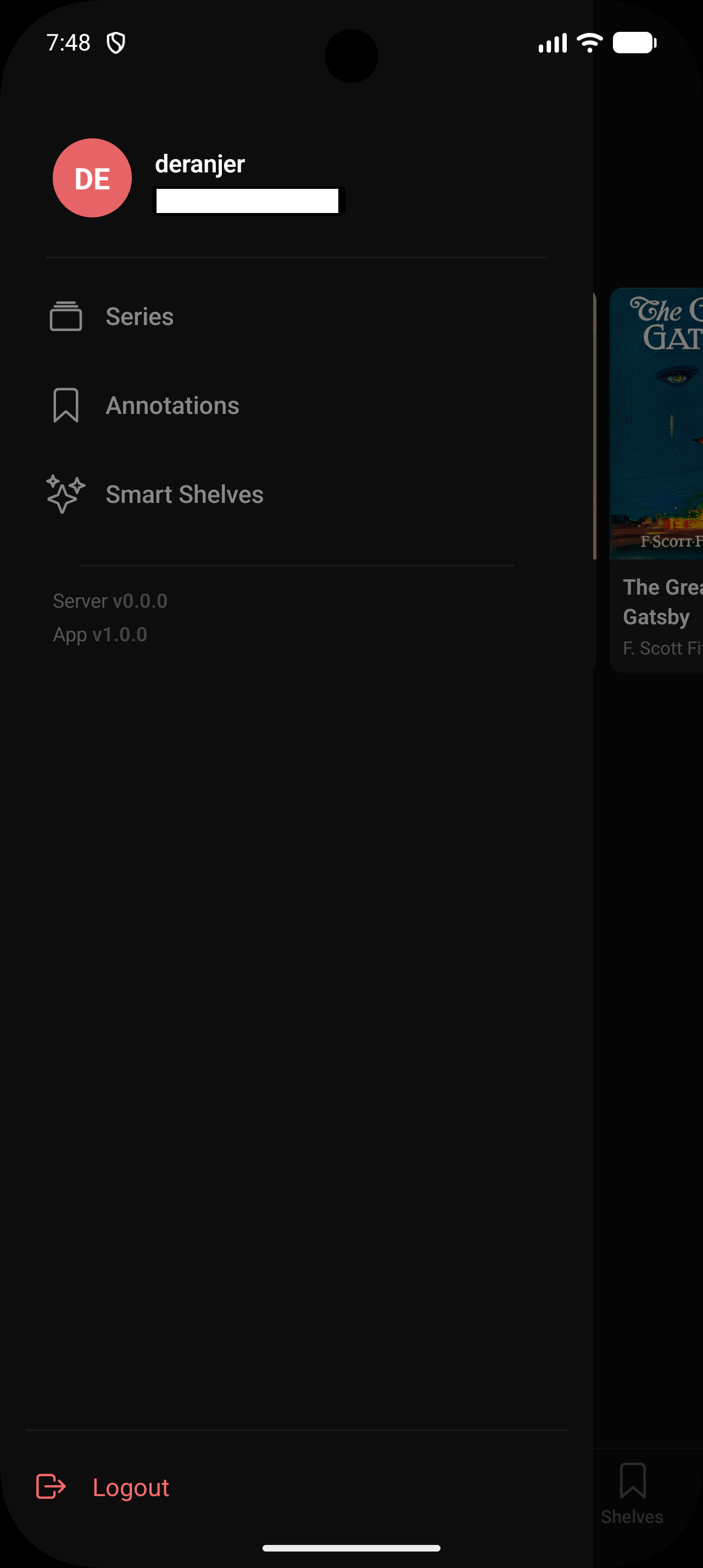
The side drawer gives access to additional views and account info:
- Series — browse books grouped by series
- Annotations — search and view all your highlights, underlines, bookmarks, and notes
- Smart Shelves — automatically populated shelves based on rules
- Logout — sign out of the app
The drawer also shows your server version and app version at the bottom.
Known limitations
The following features from the web app are not yet available on mobile:
- In-app reader — tap a book to open its details, not to read it directly
- Metadata editing
- OPDS
These are planned for future releases.