Email Delivery
Litara can send ebooks directly to an email address — useful for pushing books to a Kindle or other e-reader that accepts email attachments. Delivery is powered by a standard SMTP connection that you configure.
How it works
- An SMTP configuration tells Litara which mail server to use and how to authenticate.
- A recipient email address is the address Litara sends books to (e.g. your
@kindle.comaddress). - When you click Send on a book, Litara connects to the SMTP server and delivers the file as an attachment.
SMTP configuration
Litara supports two levels of SMTP configuration:
| Level | Who configures it | Where |
|---|---|---|
| Server (fallback) | Admin only | Admin Settings → Server SMTP |
| Personal (per-user) | Any user | Settings → Personal SMTP |
When sending a book, Litara checks your personal SMTP config first. If you haven't saved one, it falls back to the server-level config. If neither exists, the send request returns an error.
Fields
| Field | Description |
|---|---|
| SMTP Host | Hostname of your mail server, e.g. smtp.gmail.com |
| Port | Usually 587 (STARTTLS) or 465 (TLS). |
| From Address | The address that appears in the From: header. |
| Username | Login username for SMTP authentication. |
| Password | Stored encrypted at rest — never returned after saving. Leave blank when updating other fields to keep the existing password. |
| Enable authentication | Toggle SMTP AUTH on or off. |
| Enable STARTTLS | Upgrade the connection with STARTTLS. Recommended for port 587. |
Test connection
Use the Test Connection button to verify your settings without saving. A live SMTP VERIFY probe is sent and the result is shown inline.
Removing a configuration
Click Remove configuration at the bottom of the form and confirm. The configuration is deleted immediately. If you remove a personal config, future sends will fall back to the server config (or fail if none exists).
Recipient email addresses
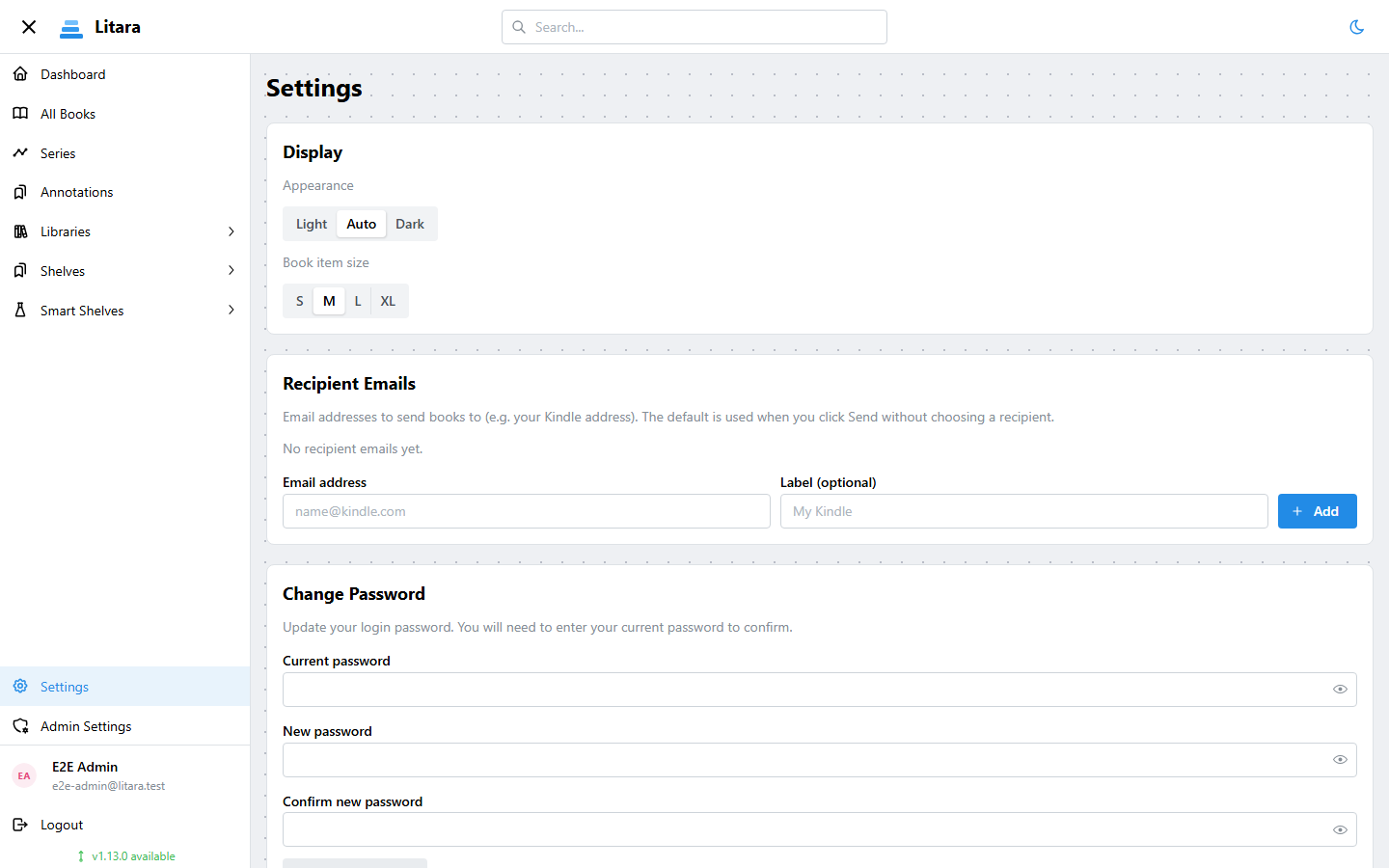
Recipient addresses are managed per-user in Settings → Recipient Emails.
- Add as many addresses as you like (e.g. one per device).
- The default address is used automatically when you send without picking a specific recipient.
- The first address you add becomes the default. You can change it at any time.
Sending a book
Open any book's detail view and click Send.
- Format — If the book has multiple file formats, a dropdown lets you pick which one to send. EPUB is pre-selected when available.
- Recipient — Defaults to your default recipient address. Change it per-send from the dropdown.
- Large file warning — If the selected file exceeds 25 MB, a warning is shown before sending. Some SMTP servers and e-reader services reject large attachments. You can still send by confirming.
Common SMTP providers
Gmail
Enable App Passwords and use:
| Field | Value |
|---|---|
| Host | smtp.gmail.com |
| Port | 587 |
| Username | your Gmail address |
| Password | the App Password (not your Google account password) |
| Enable auth | on |
| Enable STARTTLS | on |
Outlook / Hotmail
Microsoft personal accounts (@outlook.com, @hotmail.com) support SMTP sending. Enable "Allow apps to send mail" under your Microsoft account security settings, then use an App Password if two-step verification is on.
| Field | Value |
|---|---|
| Host | smtp-mail.outlook.com |
| Port | 587 |
| Username | your Outlook/Hotmail address |
| Password | your account password (or App Password if 2FA is enabled) |
| Enable auth | on |
| Enable STARTTLS | on |
Security notes
- All SMTP passwords are encrypted at rest using AES-256-GCM with a key derived from
JWT_SECRET. - Rotating
JWT_SECRETinvalidates all stored SMTP passwords. After rotation, the admin must re-enter the server SMTP password and each user must re-enter their personal SMTP password. See Configuration for details. - Passwords are never returned by the API after saving — only a masked hint (last 3 characters) is shown.